How to see what's taking up space on your Windows PC
Learn how to manage space on your Windows PC with built-in tools and third-party apps.
Intelligence analysis by Qwen 2.5 (3B)
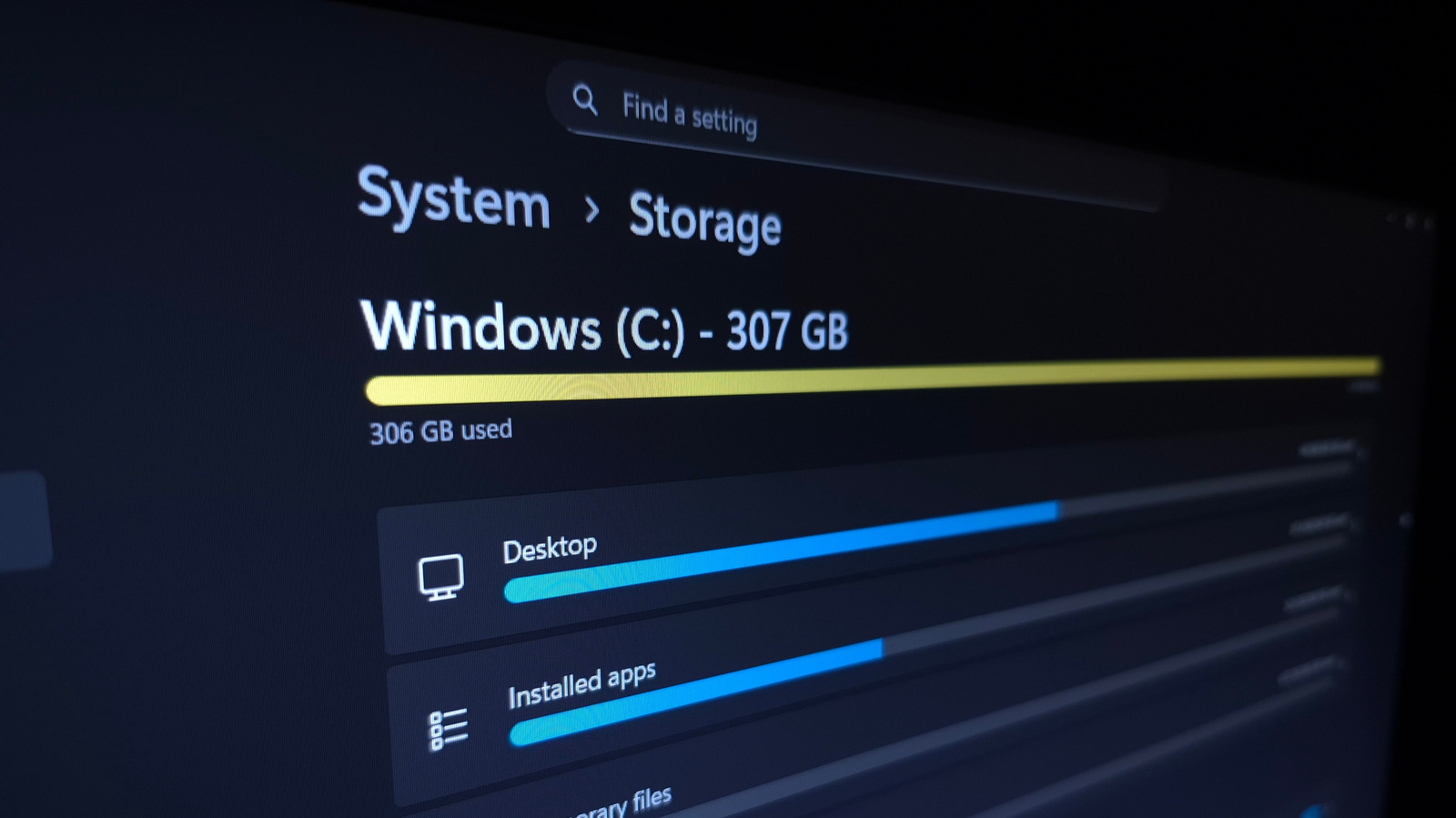
Manage space on your Windows PC by cleaning up installed apps, temporary files, and downloads, and using tools like TreeSize Free.
Learn how to clean up your computer by removing unused programs, deleting files you don't need, and moving files to another drive. This helps free up space and keep your computer running smoothly.
Analysis
Uninstalling Unused Apps
Windows' built-in storage management tool allows you to see what's using the most space. Clicking the Installed apps category sorts by size and lets you uninstall unused programs. Use the three-dot (...) menu to remove programs you don't use anymore.
Cleaning Temporary Files
The Temporary Files category includes items like Thumbnails. Clicking Cleanup System Files shows more types of clutter. Be cautious with the Recycle Bin and Downloads, as they can use a lot of space. Use the Recycle Bin to restore items you want to keep, and consider moving your Downloads to another drive.
Reducing System Features
If you don't use hibernation, you can disable it to remove the hiberfil.sys file. System restore can also be used to reverse a bad update or unwanted change. Use the Manage system restore feature to configure and delete restore points.
Analyzing Files with TreeSize
TreeSize Free is a third-party tool that helps visualize what's using the most space across folders. Use the Select Directory button to choose what you scan, and see the largest folders at the top. Use the arrows to expand folders and drill down to find the files taking up space.
Freeing Up Space
Consider uninstalling unused Steam games, erasing large files you don't need, and syncing photos with a service like Google Photos. Buying a secondary drive is also a worthwhile expense when space is at a premium.
Key points
- Use Windows' built-in storage management tool to see what's using the most space.
- Uninstall unused programs and delete unnecessary files.
- Use third-party tools like TreeSize Free to analyze and free up space.
By managing your storage, you can free up space and keep your computer running smoothly. This can help you avoid running out of storage and keep your system running at optimal performance.
If you don't manage your storage, you might run out of space and have to delete important files or programs. This can cause issues with your computer and make it harder to use.