What to try when an Android app keeps crashing
If an Android app keeps crashing, try clearing its cache, force stopping it, and uninstalling and reinstalling it. Restarting your phone and checking for software updates can also help.
Intelligence analysis by Llama
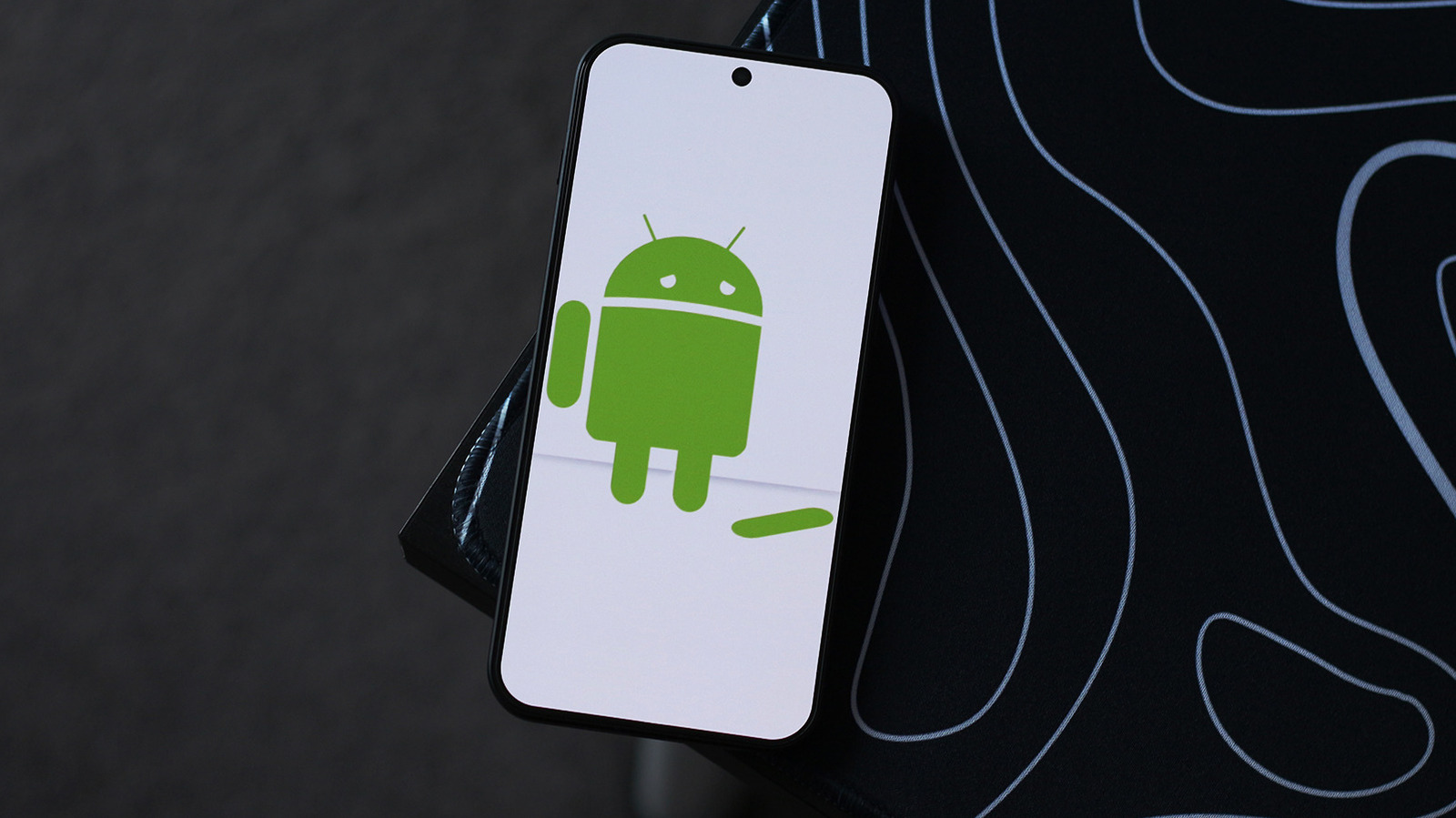
When an Android app crashes, try clearing its cache and force stopping it. If that doesn't work, uninstall and reinstall the app. Restarting your phone and checking for software updates can also help resolve the issue.
When an Android app crashes, it's like it gets stuck. To fix it, try clearing its cache, force stopping it, and uninstalling and reinstalling it. Restarting your phone and checking for software updates can also help. It's like restarting your computer to fix a problem.
Analysis
Troubleshooting App Crashes on Android
App crashes on Android can be caused by various factors, including buggy updates, corrupted cache, or software issues. To troubleshoot and fix the issue, follow these steps:
Clear the App's Cache
Clearing the app's cache can help resolve the issue by removing temporary files that may have become corrupted. To do this, go to the App info page for the app, tap on Storage & cache, and select the Clear cache option.
Force Stop the App
Force stopping the app can help resolve the issue by closing the app and restarting it. To do this, go to the App info page for the app, tap on Force stop, and try launching the app again.
Uninstall and Reinstall the App
Uninstalling and reinstalling the app can help resolve the issue by removing any corrupted data and reinstalling the app from scratch. To do this, go to the App info page for the app, tap on Uninstall, and then download the app again from the Play Store.
Restart Your Phone
Restarting your phone can sometimes be a quick fix for app crashes. To do this, hold down the power button until the screen goes black and the logo appears.
Check for Software Updates
Checking for software updates can help resolve the issue by ensuring you have the latest bug fixes and security patches. To do this, go to Settings > System > Software update and install any pending updates you find.
Install an Older Version of the App
Installing an older version of the app can help resolve the issue by avoiding any bugs introduced in the latest update. To do this, use APKMirror to find the installation file and install it on your phone.
Use the App's Web Version
Using the app's web version can be a temporary fix until the app developer publishes an update that addresses the issue. Most popular apps have a web version that is optimized for mobile browsers.
In conclusion, app crashes on Android can be caused by various factors, including buggy updates, corrupted cache, or software issues. By following these steps, you can troubleshoot and fix the issue and get back to using your app as usual.
Key points
- Clear the app's cache to remove temporary files that may have become corrupted
- Force stop the app to close it and restart it
- Uninstall and reinstall the app to remove corrupted data and reinstall from scratch
- Restart your phone to resolve the issue quickly
- Check for software updates to ensure you have the latest bug fixes and security patches
- Install an older version of the app to avoid bugs introduced in the latest update
- Use the app's web version as a temporary fix until the issue is resolved
If the app developer addresses the issue in the next update, users can expect a smoother experience and fewer crashes. Additionally, the app's web version can provide a temporary solution until the issue is resolved.
If the app developer fails to address the issue, users may continue to experience crashes and frustration. Additionally, the app's web version may not be optimized for all features, leading to a less-than-ideal experience.